

Friday, 20 December 2013


How To Run Android Apps On PC Or LAPPY
How To Run Android Apps On PC Or LAPPY

1.If u want to run ANDROID apps/games on your PC there
is an app named Bluestacks app player
2.this app will let u play android games
like-Temle run,use android
apps like-Whatsapp etc.
3.u can download it from here
4.run the .exe file named "bluestacks app player "
4.run the .exe file named "bluestacks app player "
5.install it
6.if u want any app u can search n the search bar given in the app
6.if u want any app u can search n the search bar given in the app
Now u can play all the games and use all the apps which are compatible with android devices
How to use any Sim card on any Data card without Unlocking it
How to use any Sim card on any Data card without Unlocking it

You must be fed up and annoyed by using your datacard, working tooo slow. You want to use it with another sim card but it says "Invalid sim"
Dont Worry!!
There's a solution Just follow the below steps
- Download Nokia PC suite. From Here
- Install it.
- Insert the sim card.
- Then your modem will be show invalid SIM. Don't worry just ignore it and close the modem software.
- Then start Nokia PC suite.
- Go to Nokia PC suite connect to internet option.
- Then Go to Configure. Select your data card modem,and make all operator apn setting as like when we use Nokia mobile connection...
- Now Finish setup.
- Now connect to internet through PC suite.
- Now see your net is connected without unlocking the modem.
Best way to Boost your Modem Wifi Signals
Best way to Boost your Modem Wifi Signals

Today we will see How to Boost a Modem Wifi Signal Range.
Sometimes you use an old modem and it broadcasts a very weak WiFi signal, or maybe you are sitting away from the router and the WiFi signal is almost unreachable.In such situation what you do is replace the old modem with a new one.but today here is a trick we recommend you to try this trick before you Buy a new wifi modem, In this article we will use Beer or Coke Can To boost router wifi signal range.
So Lets get started :
Step 1: Take a used beer or Coke CAN and clean it with water.

Step 2: Dry it well after cleaning it with water, then remove the sticky Pull tab from the can.

Step 3: Using a knife or a scissor, Cut the bottom of the can and carefully following the Red line like below.

Step 4: Cut the Following red line but leave a little bit of metal to make the upper side attached to the can, the little part of metal is represented by the White line

Step 5: Cut down the opposite side of the bottle until you reach the upper side. Follow the Red Line marked in the below image.

Step 5: Now open the can carefully and shape it roundly to look like an antenna or radar. Use a soft glue or tack to attach the radar antenna to your Modem device.

Thats all, This will boost your modem Wifi Signals. You can change the direction of Antenna where your Laptop is located To improve the signals and make it more effective.

How To Set New Administrator Password Without Knowing Older Password
How To Set New Administrator Password Without Knowing Older Password
This time i will tell you how to Set your new
administrator password without knowing older password like If you forget your
old password or any other reason just follow these steps
Go to Control Panel >> Administrative tools >> Computer management >> System Tools
Go to Control Panel >> Administrative tools >> Computer management >> System Tools
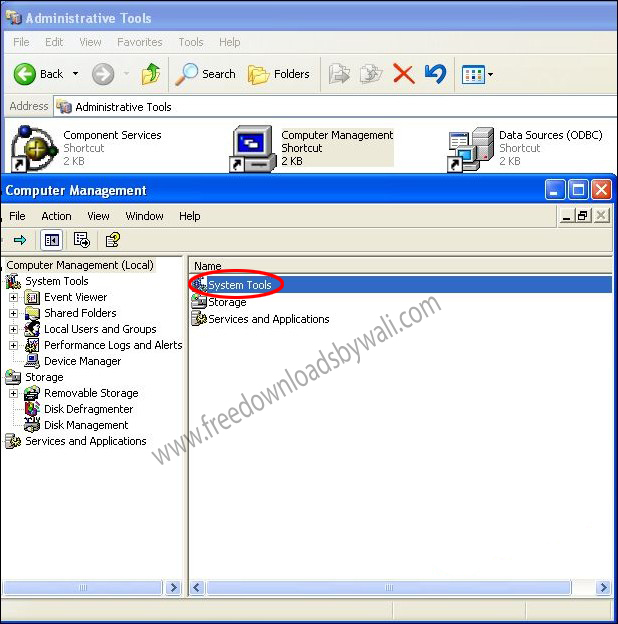
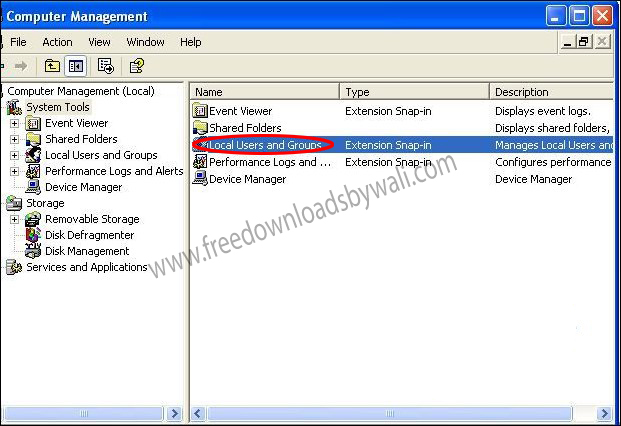
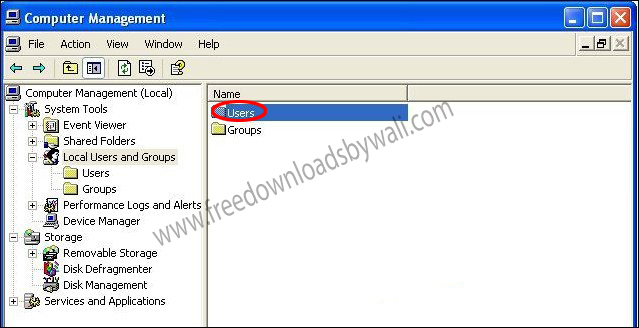
After That Go to Local user and Groups >>
User
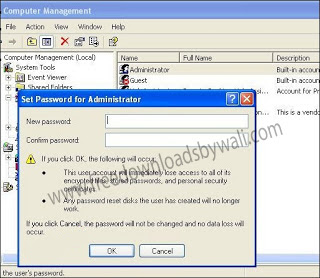
Then Right Click on Administrator and click on Set Password >> Then Click Proceed
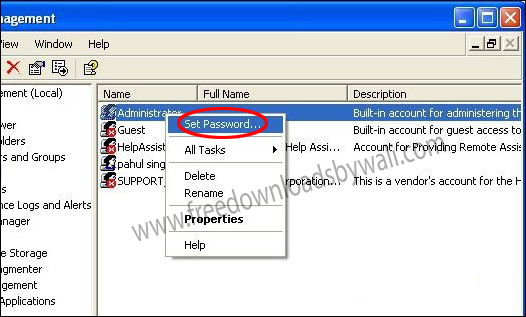
Now enter your new password and press ok
button.
Hope it is
helpful for you to solve your problem.
Turn Your Windows 7 PC Into Wi-Fi Hotspot For Sharing Internet
Turn Your Windows 7 PC Into Wi-Fi Hotspot For Sharing Internet
Hello Friends Thanks
for visiting My Website
Today i will tell u how
to Turn Your
Windows 7 PC Into
Wi-Fi Hotspot For Sharing Internet
Wi-Fi Hotspot For Sharing Internet
Windows 7 lets you
create wireless hotspot by means of which you can instantly share any internet
connection. This is useful in case you have a wired internet connection and
would like to share it with
your
laptop.
If you
have a Windows 7 laptop or PC connected to wired internet and also have a Wi-Fi
adapter, you can convert your Windows 7 PC into a Wi-Fi hotspot and share it’s
internet connection without the need of Wireless router. We earlier showed you
how to use a freeware “Connectify” to do it. But now we will show you how to do
it without any third party software.Here is a step-by-step guide on how to do it:
1. Connect your Windows 7 PC to internet. It can be Wired internet or wireless internet from 3G or Data Card.
2. Click Start—> Control Panel
3. Set “View by: Category” and then click on “View network status and tasks”. (Refer image below)

4. Click “Set up a new connection or network”.
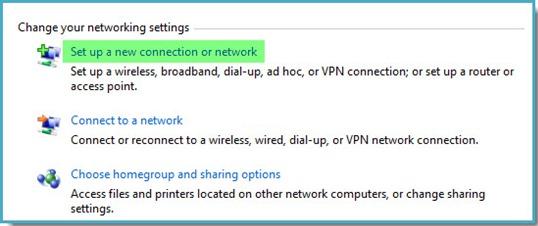
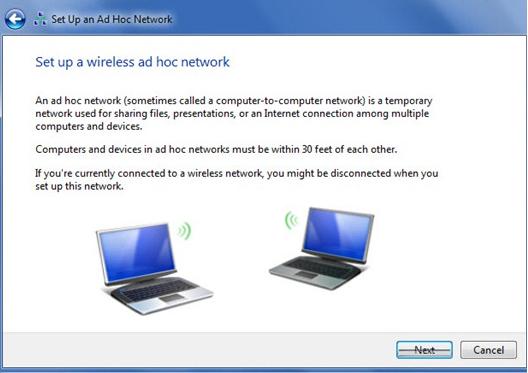
5. Select “Set up a wireless ad hoc (computer-to-computer) network” and then click “Next”.

6. Click “Next”
.
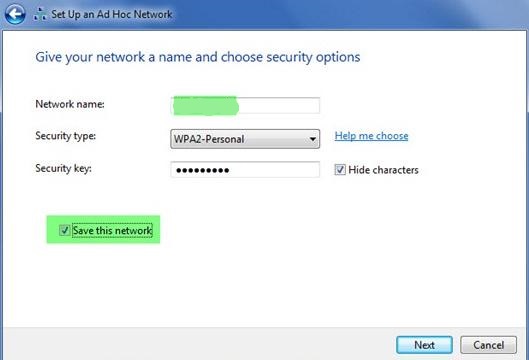
7. Give a name to your wifi network. Choose Security type as “WPA2-Personal” and give a security key.
Check the box “Save this network”. Click “Next”.
8. Windows will then show you the wifi hotspot name and network security key. You will have to enter this network security key when you connect to this wifi hotspot from another PC. Click “Close”.
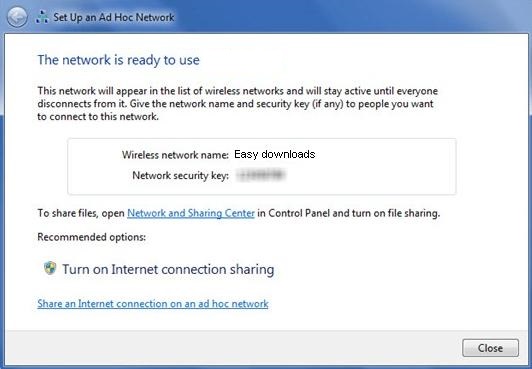

9. At this point you have now successfully created the wifi hotspot. Another PC can now connect to the wifi hotspot. But it will not have internet connection.
Hence you need to share the internet connection.
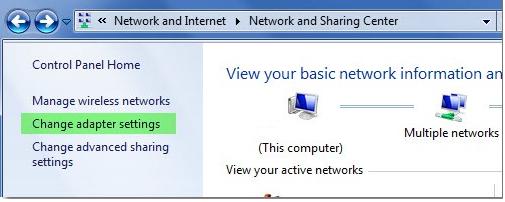
Follow Step 2 and Step 3 again. Then click on “Change adapter settings” in the left pane of “Network and Sharing Center”
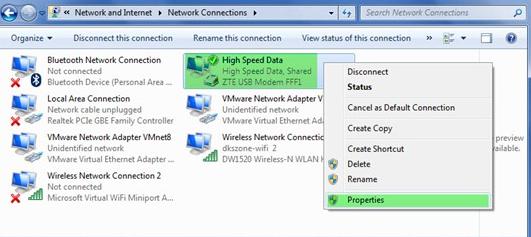
10. Select and right-click on the connection from which you are having internet and select “Properties”. For Data Card, it will be High Speed Data. If are using Wired internet via Ethernet cable, you need to choose “Local Area Connection”.
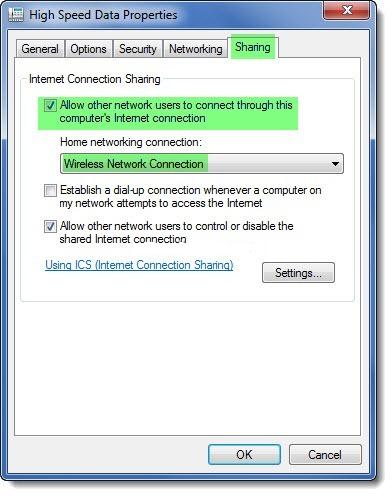
11. Click on “Sharing” tab. In “Internet Connection Sharing” section, check the box “Allow other network users to connect through this computer’s Internet connection” and choose the “Home networking connection as “Wireless Network Connection”. Click “OK”
You are done. Now you
should be able to access
internet in other PC
Subscribe to:
Posts (Atom)